/
RHEL SoftNAS Installation Steps
RHEL SoftNAS Installation Steps
- Former user (Deleted)
- Nicholas Eisel
- Riad Mahamudul (Unlicensed)
Owned by Former user (Deleted)
Last updated: Mar 13, 2024 by Nicholas Eisel
Recommended minimum system requirements
- No. of vCPU – 4
- Memory – 16 GB
- Storage – 250 GB
- Operating System – RHEL-8.6
For new installations, a fresh RHEL-8.6 OS is required for the RHEL SoftNAS Installer to successfully complete.
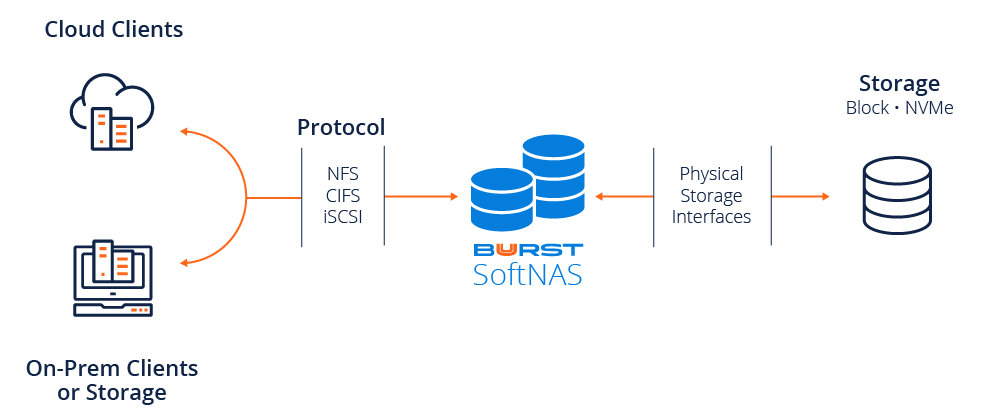
Steps to install SoftNAS on RHEL-8.6
- Register your RHEL system with your RHEL subscription using command below:
Register RHEL system with RHEL subscription
subscription-manager register --username X --password X --auto-attach
Users will need to provide their RedHat username and password.
- You need to be either logged into the root account or use the sudo command to install SoftNAS on RHEL.
- On the Azure platform – RHEL system, run the following commands to resize the filesystem
Resizing Filesystem
sudo lvresize -r -L +15G /dev/mapper/rootvg-rootlv

sudo lvresize -r -L +2G /dev/mapper/rootvg-tmplv
If using AWS/VMware, you do not need to issue the "Resizing Filesystem" commands.
- Now run the following commands on your RHEL system to run the installation script:
INSTALL_SCRIPT=https://www.softnas.com/software/softnas/installer/installer_rhel.sh

wget -O /tmp/installer_rhel.sh ${INSTALL_SCRIPT}

chmod +x /tmp/installer_rhel.sh

/tmp/installer_rhel.sh
- The above script should complete successfully, and the instance will be rebooted at the end of the script execution. After that you should be able to access SoftNAS over the browser using the instance IP address.
- For testing purposes, in the case that the SoftNAS instance is going to be destroyed, then the RHEL subscription needs to be unregistered and removed using below commands:
subscription-manager remove --all

subscription-manager unregister

subscription-manager clean
Note / Warning
When installing SoftNAS using the RHEL installer on AWS or Azure, the password is not set by default. You will need to manually set up the password for your account in order to access the StorageCenter User Interface.
To set the password for your instance, you will need to access the command line interface of your SoftNAS instance as the root user account.
Use the following default login credentials:
Username: root
Password: Pass4W0rd
Once you're logged into the root account and have accessed the command line interface, issue the following command:
passwd softnas
Now that you've accessed the root user account for your instance, we encourage you to change your default login credentials - it's easy to do and explained here: Changing Default Passwords
, multiple selections available,
Related content
SoftNAS
SoftNAS
Read with this
Buurst® SoftNAS 5 Release Notes
Buurst® SoftNAS 5 Release Notes
More like this
Buurst SoftNAS Security Assurance
Buurst SoftNAS Security Assurance
More like this
SoftNAS Best Practices When Managing Storage Pool
SoftNAS Best Practices When Managing Storage Pool
More like this
SoftNAS Deployment on Azure: Firefox "Next" Button Issue on HA Configuration
SoftNAS Deployment on Azure: Firefox "Next" Button Issue on HA Configuration
More like this
[SoftNAS KB]: Expired Azure Service Principal Secret
[SoftNAS KB]: Expired Azure Service Principal Secret
More like this